Desk Cable Organization: How to Tidy the Cords You Use Every Day
A safe, step-by-step way to tidy the cords behind and under a desk: identify each one, remove extras, bundle loosely, guide the run along the desk and leave slack.
At a glance
What you need
- Soft reusable hook-and-loop ties
- Adhesive cable clips
- Cable tray or cable box made for the purpose (optional)
- Desk-edge cable holder
- Tags or tape and a pen
- Dry cloth
Behind most desks there is a knot: the monitor cable looped over the lamp cord, a charger nobody has used in a year, and a power strip lying in the dust where the vacuum cannot reach. It works, but moving the laptop or cleaning the floor means untangling it all first.
Desk cable organization is a tidying job, not an electrical one. You only handle the visible length of each cord: which ones stay, how they are grouped and which path they follow from the device to the plug. Nothing is opened, cut or altered, and the whole job needs about an hour and a few inexpensive supplies.
Step 1: Gather supplies, then unplug and identify every cord
You will need:
- Soft reusable hook-and-loop ties
- Adhesive cable clips sized for your cords
- A cable tray or cable box made for the purpose (optional)
- A cable holder for the desk edge
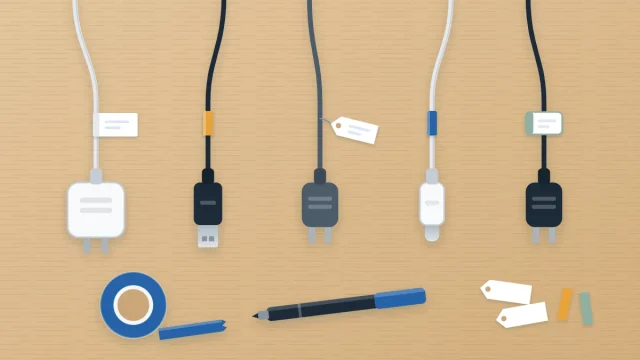
- Blank tags or a roll of tape and a pen
- A dry cloth, and a box for cords you remove
Then clear the tangle:
- Save your work and shut down the computer and anything attached to it.
- Switch off the power strip, then unplug it from the wall outlet.
- Unplug each cord from the strip, one at a time, and follow it by hand to the device at the other end.
- Tag it at the plug as you go. A strip of tape with “lamp” or “monitor” written on it is enough for now.
- Wipe the dust from the cords, the strip and the floor behind the desk with a dry cloth.
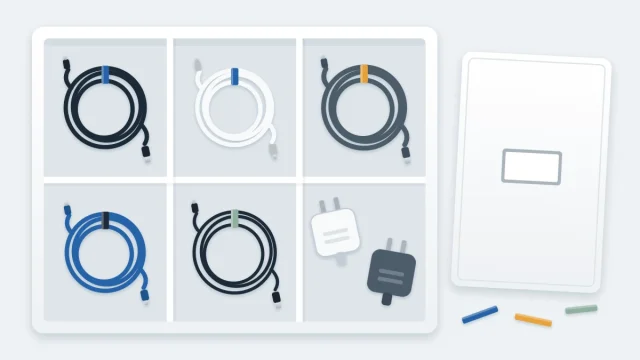
Temporary tags do the job today. For labels that last, with both ends marked, see how to label cables and chargers.
Step 2: Remove the cords you do not need
Chargers for gadgets kept elsewhere, cables for equipment you no longer own and duplicates all come out.
Check every cord along its length while it is in your hands. Stop using and replace any cord, plug or charger that is frayed, cracked, bent at the connector or has been getting unusually hot. Do not mend a damaged cord with tape.
Good cords you want to keep but do not need here go into the box. The guide on how to store spare cables, chargers and adapters shows what to do with them afterward.
Step 3: Give the power strip a proper place
The strip is the hub of the layout, so place it before routing anything. It should be off the floor dust, where you can see it and reach its switch, with air around it.
- A cable tray made for the purpose, clamped or fitted under the back of the desk the way its maker describes.
- A low shelf or the top of a drawer unit beside the desk.
- A ventilated cable box designed to hold a strip, used as its instructions say.
Avoid shutting a strip inside a closed drawer or burying it under papers or fabric.
Safety note
Do not overload the outlet or the power strip, and follow the manufacturer’s instructions for the strip and for every device plugged into it. Never plug one power strip or extension cord into another. Keep cords out from under rugs, away from heaters and clear of walkways, and never fix them in place with staples or nails. If the desk needs more outlets than the room provides, a new outlet is a job for a licensed electrician.
Step 4: Group cords that run the same way
Plug the devices back in one at a time, starting with the ones that stay put: monitor, computer, lamp, printer. Cords that travel along the same route can be gathered into one bundle.
- Lay two to four cords side by side along the path they share.
- Wrap a hook-and-loop tie around them loosely. You should be able to slide a finger under the tie.
- Add another tie every hand span or two, so the bundle hangs as one line instead of sagging between ties.
- Let each cord leave the bundle where its device sits, in a gentle curve.
Never cinch a tie tight or force a cord into a sharp bend, especially where it meets a plug or connector. If a cord is much longer than its route, fold the extra into a wide, loose loop and hold it with one tie. Do not coil a cord tightly while it is in use.
Step 5: Guide the bundle along the back of the desk
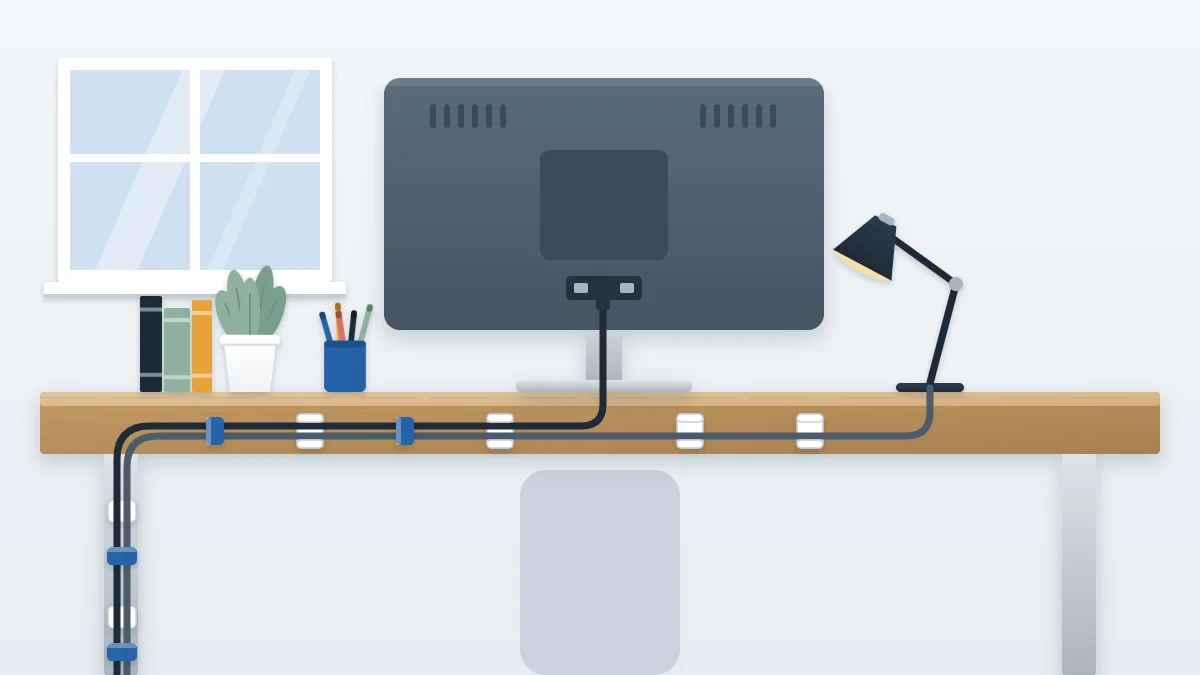
Give the bundle a fixed route along the back edge of the desktop and down one leg.
- Clean and dry the surface first, then press adhesive cable clips along the underside or back edge of the desk, following the directions on the pack.
- Seat the bundle in the clips without stretching it.
- Bring everything down a single desk leg, held with one or two ties around the leg, to the power strip.
- Keep the run to the wall short and against the baseboard, not across the floor where feet and chair wheels travel.
Step 6: Leave slack where things move
Anything you reposition needs spare length, or the first adjustment will pull a plug at an angle.
- Monitor on an arm or a sit-stand desk: move it through its full range and check that no cord goes taut.
- Laptop: leave enough free cord to lift it onto your lap or slide it aside without unclipping anything.
- Lamp: leave a small loop at the base so it can swivel.
Tip
Put the last tie before each device a little way back from the connector. The free length in front of it is your working slack, and the plug is never pulled sideways.
Step 7: Keep daily chargers at the desk edge
The cords you plug and unplug every day should not be bundled with the rest. A weighted or adhesive cable holder at the back corner of the desk keeps the laptop and phone ends from sliding to the floor when you disconnect.
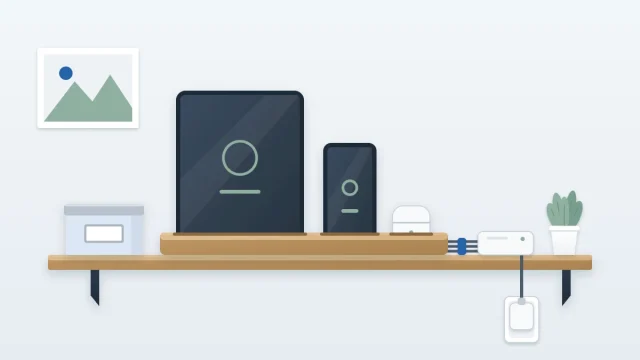
Limit the holder to the two or three you use daily. If phones, tablets and earphones for the whole household end up charging at your desk, move them to a separate spot using the steps for a tidy charging station.
Adapting to a different desk
- Glass or open-frame desk: you cannot hide the route, so make it a single straight line down one leg, with ties in a color close to the frame.
- No surface that takes adhesive: use ties around the frame and legs in place of clips.
Frequently asked questions
How tight should cable ties be?
Loose enough to slide a finger underneath. The tie only needs to keep the cords together, not grip them. Avoid cinching a bundle or bending a cord sharply, particularly near a plug or connector, and use soft reusable ties so you can open the bundle when a device changes.
What should I do with a cord that is far too long?
Fold the extra length into a wide, loose loop and hold it with one soft tie somewhere along the route, such as in a cable tray. Do not wind it into a tight coil while it is in use, and do not try to shorten the cord itself.
Where should the power strip go?
Somewhere you can see it and reach its switch, raised out of the dust and with air around it: a cable tray made for the purpose, a low shelf or the top of a drawer unit. Do not shut it in a closed drawer or cover it, and follow its maker's instructions.